
Open source
Audit and extend on GitHub — issues, releases, and community PRs.
Free · Open source · Windows
ShareX captures screens, records GIFs and video, runs OCR, uploads to dozens of hosts, and automates everything with workflows — with no ads and years of steady updates.
Latest stable release referenced on this page: 19.0.2.
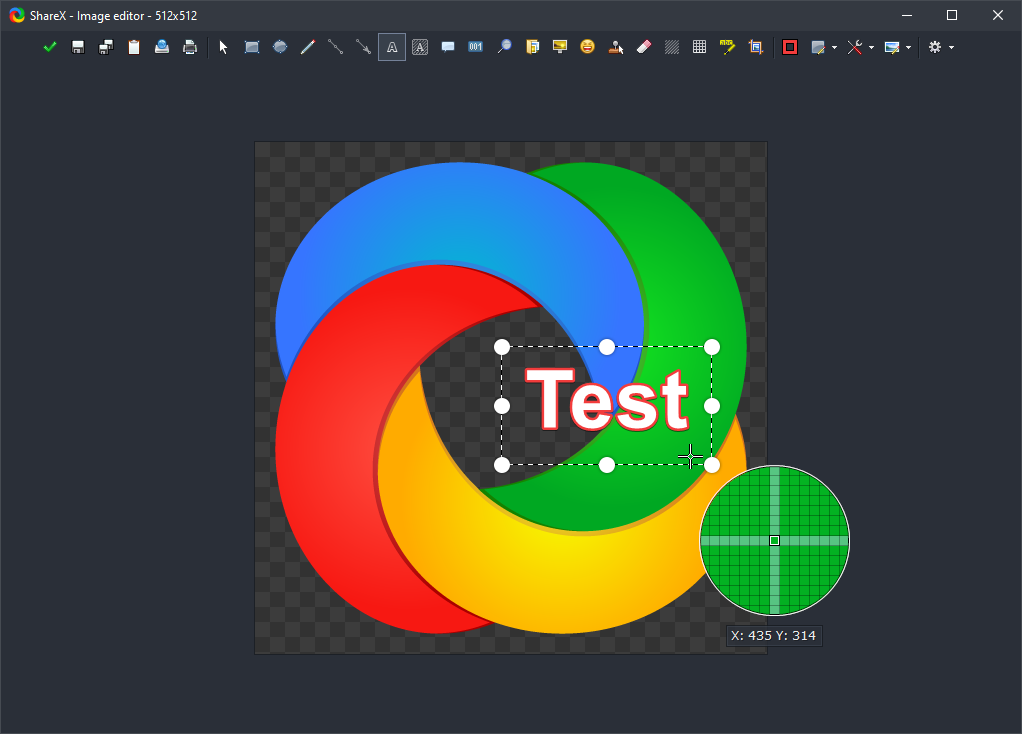
Screenshots from ShareX · visuals from GitHub
Why it matters
One tray icon replaces a pile of tools — capture, annotate, host, automate. Trusted for 18+ years of development, no adware.
Audit and extend on GitHub — issues, releases, and community PRs.
Chain after capture / after upload tasks: OCR, beautify, copy links, open folders.
Custom uploaders for APIs, S3, and self-hosted stacks.
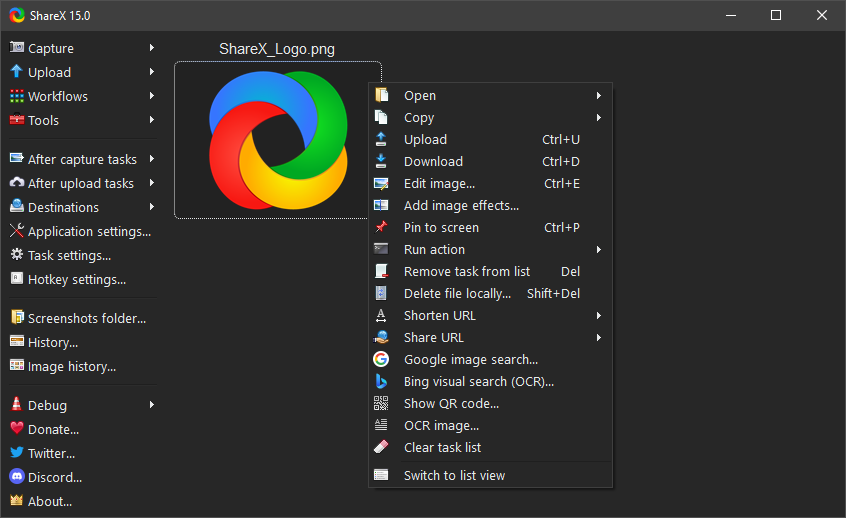
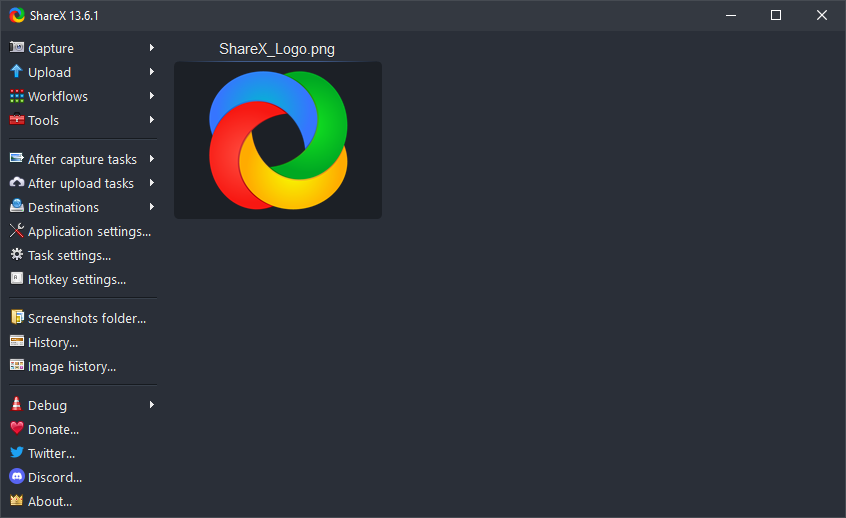
This page uses official ShareX UI shots so you see the actual product — menus, settings, and editor.

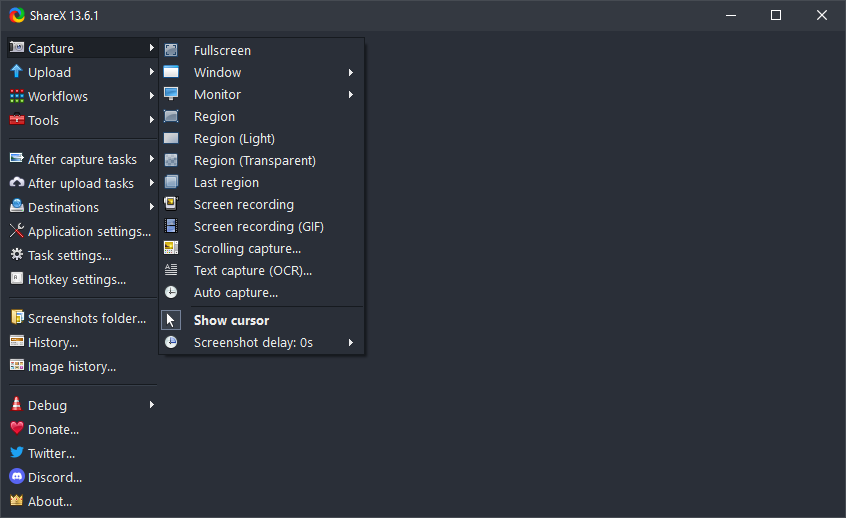
01 — Capture
Fullscreen, active window, region, scrolling capture, screen recording, GIF, auto capture — tuned for how people really ship screenshots. Scrolling guide.
02 — Region
Rectangle, ellipse, freehand — then arrows, steps, blur, stickers. Built for bug reports and tutorials without leaving ShareX.
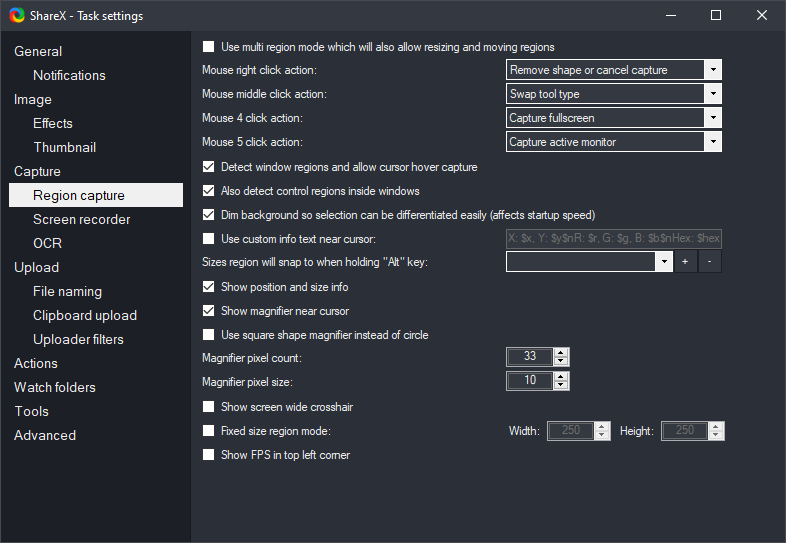
Step annotations cut Slack back-and-forth on repro steps.
Blur & smart eraser before you paste tokens into tickets.
03 — Upload
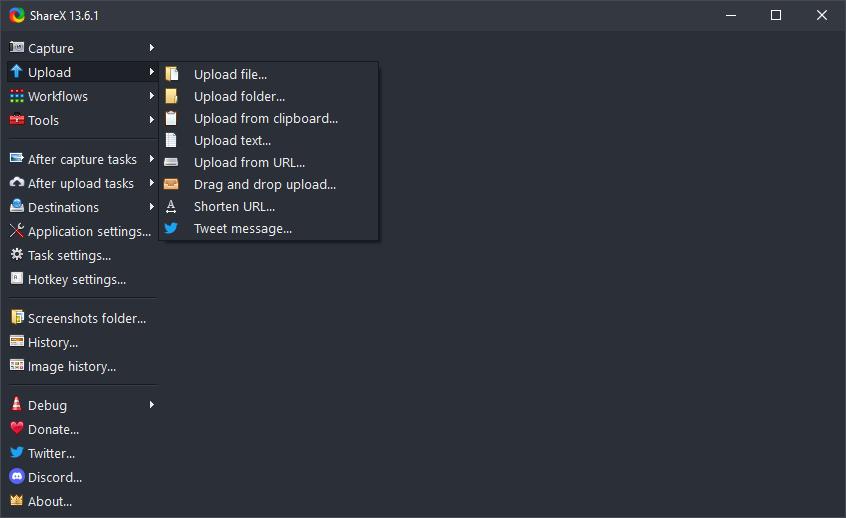
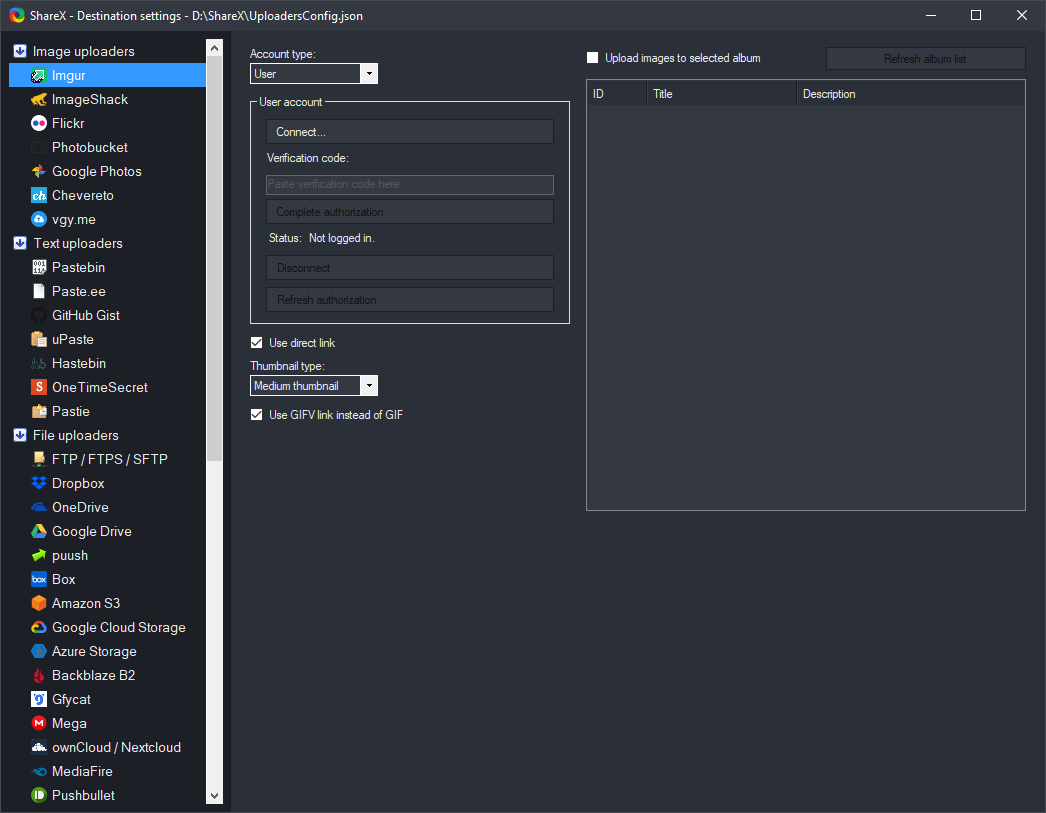
Files, folders, clipboard, text, URLs — then shorten links, QR, copy to clipboard. Docs: S3, GCS, R2, custom uploader.
04 — Tools
Color picker, ruler, OCR, hash, clipboard viewer, image combiner — from one icon. OCR docs · Keybinds · Actions.
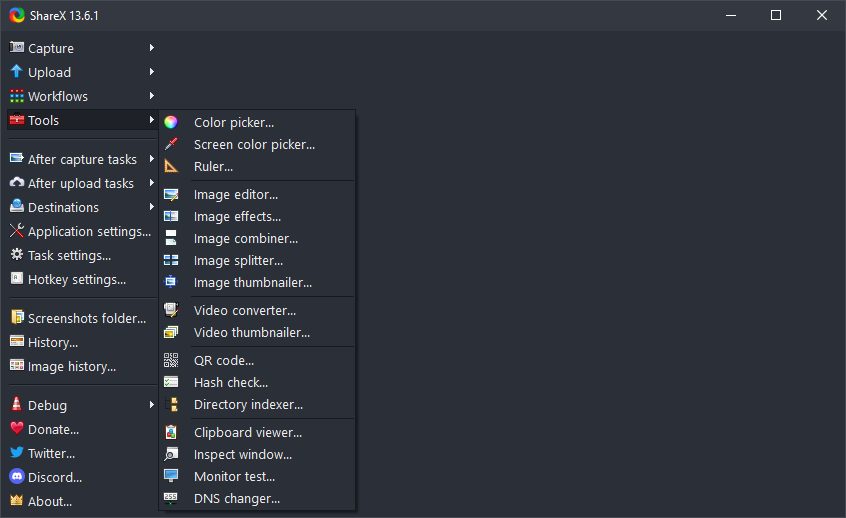
Patterns from Discord & Reddit — not a substitute for official docs, but a fast on-ramp.
After capture → upload → copy URL. Map region to a hotkey you won’t fight with.
Scrolling capture; if a SPA misbehaves, try shorter segments or another scroll method.
ZIP for USB / locked PCs; setup for shell integration & typical updates.
Cross-check with the changelog. Hotkey issues? That’s what this screen is for:
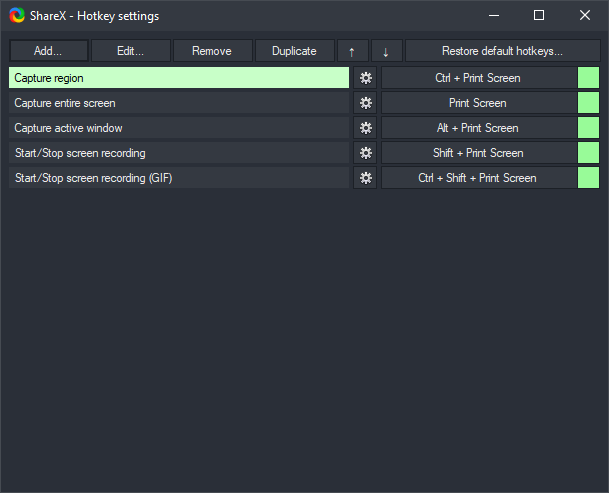
Remap in Hotkey settings; borderless fullscreen often behaves better for region capture.
Rotate API keys; validate custom uploader JSON; test tiny PNG first; check S3 clock & region.
Try another scroll method; disable smooth scroll briefly; shorter segments on heavy GPU pages.
Verify hashes from GitHub releases; exclude install folder if appropriate.
Below: 19.0.2 assets.
Independent fan site · Privacy · Brand assets
Concrete ways teams adopt ShareX — each block is independent; mix workflows to match how you work.
Capture stack traces, repro steps, and API responses. Pair region capture with copy file path after save so tickets reference exact artifacts. Use dev builds when testing bleeding-edge fixes.
Pin references, sample colors with the color picker, and export consistent crops. Combine image effects with the editor for quick markup without opening Figma for trivial annotations.
Standardize on one hotkey for “ticket screenshot” workflows: upload → paste URL into Zendesk or email. OCR helps when users send photos of error text.
Scrolling capture for long readings; GIF recorder for short UI demos. Keep a folder of reusable “clean” captures with blur applied to student names.
Auto capture on interval for flaky UI states. History helps compare builds; combine with hash checker when verifying file outputs.
Article-length scrolling shots, citation-friendly file names, and quick URL shortening when sharing drafts on social.
Redact account numbers before upload; use region + blur first. Directory indexer can catalog export folders when auditing screenshots.
GIF clips for highlights; avoid hotkey clashes with OBS by moving ShareX binds to a modifier-heavy chord. Borderless window capture often plays nicer with overlays.
Terms you will see in menus, forums, and official docs.
Region hotkey → after capture: upload → copy URL. Default destination set to your preferred host.
After capture: save to dated folder with pattern %y-%mo-%d; disable upload for sensitive projects.
Fullscreen → open editor → step numbers → blur secrets → save as PNG → attach to issue tracker.
Screen recorder (GIF) with tight crop; after capture upload to host used by your team chat.
After capture: perform OCR → copy text — useful for serial numbers in remote desktop sessions.
Use separate workflows: one for public Imgur links, one for private S3 with different credentials.
| Scenario | Typical setup | Docs |
|---|---|---|
| Quick anonymous image | Built-in image host presets | Custom uploader |
| Private company bucket | S3 or R2 with least-privilege IAM | S3 · R2 |
| Google-centric org | GCS bucket + service account | GCS |
| Self-hosted API | Custom JSON response mapping | Custom uploader |
ShareX does not ship one global shortcut for everyone — you choose chords that avoid conflicts. Common patterns:
Smaller than video for chat, but palette limits and size caps matter. Trim duration in task settings when uploads must stay under host limits.
Prefer settings your editors accept downstream. Re-encode with the built-in video converter if a platform rejects your default container.
Confirm Windows privacy settings allow microphone/desktop audio when capturing tutorials.
High FPS screen recording can contend with games; lower FPS often suffices for UI captures.
ShareX is light, but heavy image effects, huge scrolling captures, and simultaneous recording can spike disk and CPU. Close unneeded “after capture” steps on low-end laptops; store outputs on fast SSDs when recording long sessions; reduce history retention if disk space is tight.
Follow release notes and community reports for your build; prefer official installers from GitHub or Store for supported platforms.
Yes — different hotkeys can trigger different task settings and destinations.
Thumbnail and entry retention settings; trim or clear periodically on small disks.
Same core app; update channel and install location differ — pick what fits your update policy.
See translation docs to help localize.
“Document your hotkeys in a team wiki — onboarding is faster when everyone uses the same chord scheme.”
“When scrolling capture fails on one browser, try another engine or capture in two passes — it’s often the site, not ShareX.”
“Export your ShareX settings before reinstalling Windows — backup saves hours of re-tuning destinations.”
| Myth | Fact |
|---|---|
| “ShareX is only for gamers.” | It’s a general Windows capture suite — enterprises, schools, and dev shops use it daily. |
| “Upload means everyone sees my screen.” | Upload only happens when your workflow includes it; local-only paths are common. |
| “Scrolling capture works on every site.” | Complex SPAs and canvas-heavy pages may need alternate methods or multiple captures. |
| “Portable never touches the registry.” | Behavior depends on options you enable; treat portable media as sensitive if history is stored. |
Short ideas — combine with official docs. Numbered for easy reference in tickets or wikis.
Screenshots may contain third-party UI, personal data, or copyrighted content. Obtain consent when capturing people or sensitive workflows; blur by default in regulated industries. When publishing tutorials, credit ShareX and link to the ShareX project on GitHub so readers get authentic downloads. This site (share-x.dev) is an independent reference and is not affiliated with the ShareX core team — always verify security-sensitive instructions against official documentation.
ShareX runs on Windows desktop contexts. Display scaling, HDR, and virtual desktops can change how regions align — recalibrate after you move laptops between docks. Game overlays and GPU drivers sometimes intercept the same shortcuts; prefer unique chords for capture when streaming or benchmarking.
Mixed scaling across monitors may shift coordinates — verify captures after changing resolution presets.
Latency affects scrolling capture; OCR on fuzzy RDP text may need a second attempt with higher contrast.
Battery saver can throttle screen recording — plug in for long GIF or video sessions.
%y-%mo-%d_%h-%mi-%s for sortable archives.| Format | Strength | Watch out |
|---|---|---|
| PNG | Lossless, sharp UI text | Larger files for photos |
| JPEG | Smaller for photos | Artifacts on crisp UI edges |
| GIF | Motion in chat apps | Palette limits, file size spikes |
| WebP | Good compression when supported | Downstream tools may lack support |
Try windowed or borderless mode; disable exclusive fullscreen if the game allows; update GPU drivers.
Confirm clipboard actually holds an image; some apps put private formats first — copy again from Paint to test.
Parse rules may expect JSON; inspect response body and adjust regex or JSON path in uploader config.
Large history databases — prune entries or relocate storage to faster disk.
Re-select active monitor mode or specify region; check “remember region” targets.
Uploads may fail if MITM certs aren’t trusted — align with IT root store policy.
Set OCR language pack availability in Windows and match task settings to your content.
GIF palette constraints — shorten clip or use MP4 workflow if your host allows.
Support desk
A tier-1 team replaced ad-hoc phone photos with ShareX region + blur for ticket attachments; mean time to attach a clear repro dropped because URLs pasted straight into the CRM.
Indie dev
GIF screen captures for patch notes replaced heavy video files; players on slow connections could still see ability rotations without loading a full trailer.
Compliance review
Auditors requested evidence of UI controls; scrolling captures of policy pages plus local-only storage satisfied reviewers without exposing customer data to public hosts.
ShareX is not a replacement for every creative suite — combine with editors, git clients, and ticket systems you already use. No endorsement implied; pick what fits your stack.
ShareX evolved over many years of community feedback. Releases combine stability fixes with new capture and upload features. Reading the changelog before upgrading helps you anticipate UI moves or default changes. Star the GitHub repo to signal appreciation and watch releases without noise from unrelated projects.
Informal summary — features change over time; verify in your Windows build.
| Aspect | Snipping Tool | ShareX |
|---|---|---|
| Workflow automation | Basic | Extensive |
| Custom uploaders | Limited / varies | Strong |
| Scrolling web capture | Varies by OS build | Dedicated tools |
| Learning curve | Lower | Higher payoff |
End each week with a 60-second history cleanup if disk is tight.
Snapshot settings before major Windows feature updates.
Teach “blur before upload” as muscle memory for interns.
Keep one offline backup of your favorite custom uploader JSON.